 |
Enabled |
 |
Disabled |
 |
Individual |
 |
Company |
To reach the Channel Partners page, on the main menu click Customers > Channel Partners. The left pane displays a list of all Channel Partners and provides the following information about each Channel Partner:
| Status | The current status of the Channel Partner. | |||||
|
||||||
| Type | Indicates the Channel Partner type: | |||||
|
||||||
| Name | The name of the Customer who placed the order. | |||||
| Ref ID | Reference ID of the Channel Partner in another system. |
 . The list shows the relevant search results.
 To view the details of a Channel Partner, select a Channel Partner from the left pane. The details are displayed in the right pane.
| New Channel Partner |
Define a new Channel Partner and its properties. Refer to Creating a Channel Partner. |

|
View and edit the properties of the selected Channel Partner. |
 > Delete > Delete |
Delete the selected Channel Partner. This task is listed only if no Entitlements exist for the Channel Partner. |
|
> Disable / Enable |
Disable or enable a Channel Partner. Entitlements cannot be created for disabled Channel Partners. |
For Company-type Channel Partners, you can specify multiple Contacts and edit their details. The Contact Association pane appears at the bottom-right of the page.
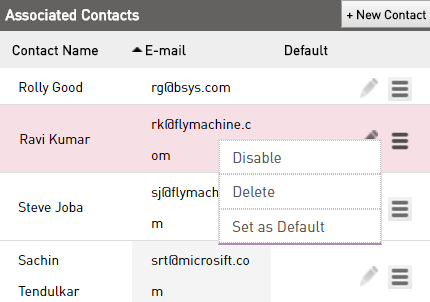
| New Contact |
Create a Contact for a Company-type Channel Partner. This task does not appear for Individual-type Channel Partners. See Creating/Updating a Contact for a Company-type Channel Partner |
|
> Disable / Enable |
Disable or enable a Contact. Disabled Contacts cannot login to Sentinel EMS. |
|
|
View and edit the properties of the selected Contact. See Creating/Updating a Contact for a Company-type Channel Partner. |
|
> Delete |
Delete the selected Contact. You cannot delete Contacts for which Entitlements exist. |
|
> Set as Default |
Mark the selected Contact as the default Contact for the Channel Partner. |
|
|
|||
| http://www.safenet-inc.com/Support | |||
|
|||